Your devices are all connected to the same WiFi or Ethernet, but you can't see other computers in File Explorer. Network folder shows nothing. File sharing doesn't work.
This is network discovery being disabled or blocked. Here's how to fix it.
Windows: Enable Network Discovery
Quick fix:
- Open File Explorer
- Click "Network" in sidebar
- Yellow bar appears at top saying "Network discovery is turned off"
- Click the bar → "Turn on network discovery and file sharing"
Done. Other computers should appear within 30 seconds.
If that didn't work:
- Control Panel → Network and Sharing Center
- Click "Change advanced sharing settings"
- Under "Private" profile, enable:
- Turn on network discovery - Turn on file and printer sharing
- Save changes
Check Your Network Profile (Public vs Private)
Windows treats public networks (coffee shops) differently than home networks.
Verify your network is set to Private:
- Settings → Network & Internet
- Click your WiFi or Ethernet connection
- Network profile should say "Private"
- If it says "Public," change it to Private
Public networks disable discovery for security. Private networks enable it.
Firewall Blocking Discovery
Windows Firewall might be blocking network discovery packets.
Allow through firewall:
- Control Panel → Windows Defender Firewall
- "Allow an app through firewall"
- Find "Network Discovery" in list
- Check both Private and Public boxes
- Click OK
All Devices Must Have Discovery Enabled
Network discovery works both ways. If Computer A can't see Computer B, check that Computer B also has discovery enabled.
Go to each device and verify network discovery is on.
Mac: Enable File Sharing
Macs don't appear on Windows networks unless file sharing is enabled.
- System Preferences → Sharing
- Check "File Sharing"
- Click Options → Enable "Share files and folders using SMB"
- Done
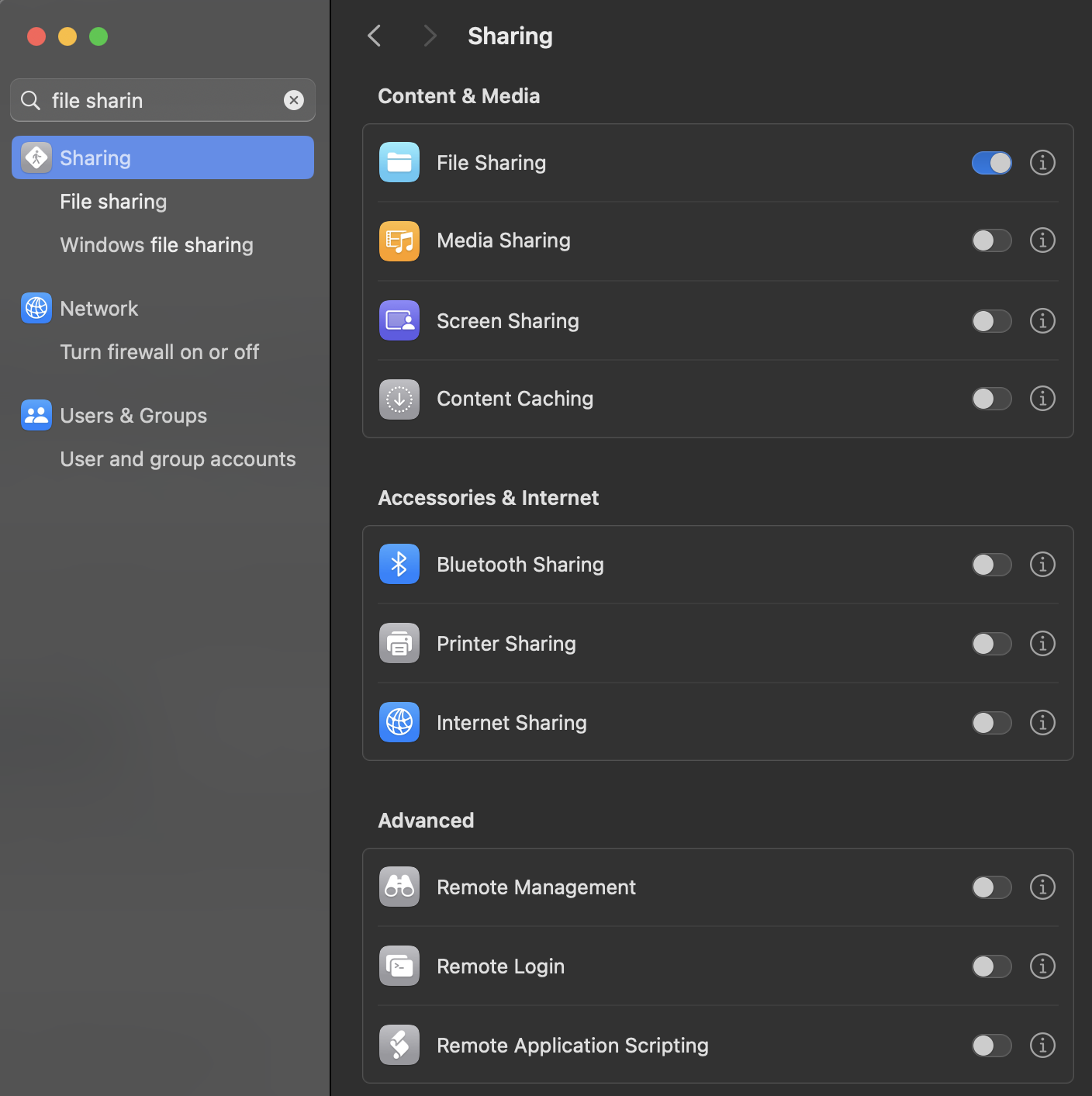
Mac should now appear in Windows File Explorer under Network.
Devices on Different Subnets
If your router is configured strangely, devices might be on different subnets and can't see each other.
Check IP addresses:
All devices should start with the same numbers. Like:
- Computer 1: 192.168.1.45
- Computer 2: 192.168.1.67
- Computer 3: 192.168.1.102
If one shows 192.168.0.x or 10.0.0.x while others show 192.168.1.x, they're on different networks.
Fix: Restart that device, or check if it's connected to a different router/access point.
Still Not Working?
Restart network services (Windows):
net stop fdPHost
net start fdPHost
net stop FDResPub
net start FDResPub
Or just restart both computers. Network discovery sometimes needs a fresh start.
Bottom Line
Network discovery lets Windows computers see each other on the same network.
Most common fix: Change network profile from Public to Private, then enable network discovery in advanced sharing settings.
Check that all devices have discovery enabled and are on the same subnet. Restart if needed.
File sharing will work once devices can see each other.