
You updated an A record. Your new server is running. You navigate to your domain — and you still see the old site. Or someone in another country sees the new site but you don't. Or both are happening simultaneously for different users.
This is DNS propagation. It's not a bug and it's not your registrar being slow. Here's exactly what's happening and how to manage it.
What Is DNS Propagation?
DNS (Domain Name System) is a globally distributed database that maps domain names to IP addresses. It's not a single server — it's a hierarchy of thousands of resolvers, each caching answers for a period of time.
When you update a DNS record, you're changing the data on your authoritative nameserver — the one your registrar or DNS provider controls. But the rest of the internet doesn't query your authoritative server directly. They ask their local recursive resolver (usually run by their ISP or a public DNS service like 1.1.1.1 or 8.8.8.8), which has its own cached copy of your record.
Propagation is the process of that cached copy expiring and being replaced with your new record.
The Full DNS Resolver Chain
Understanding why propagation takes time requires understanding how a DNS query actually works:
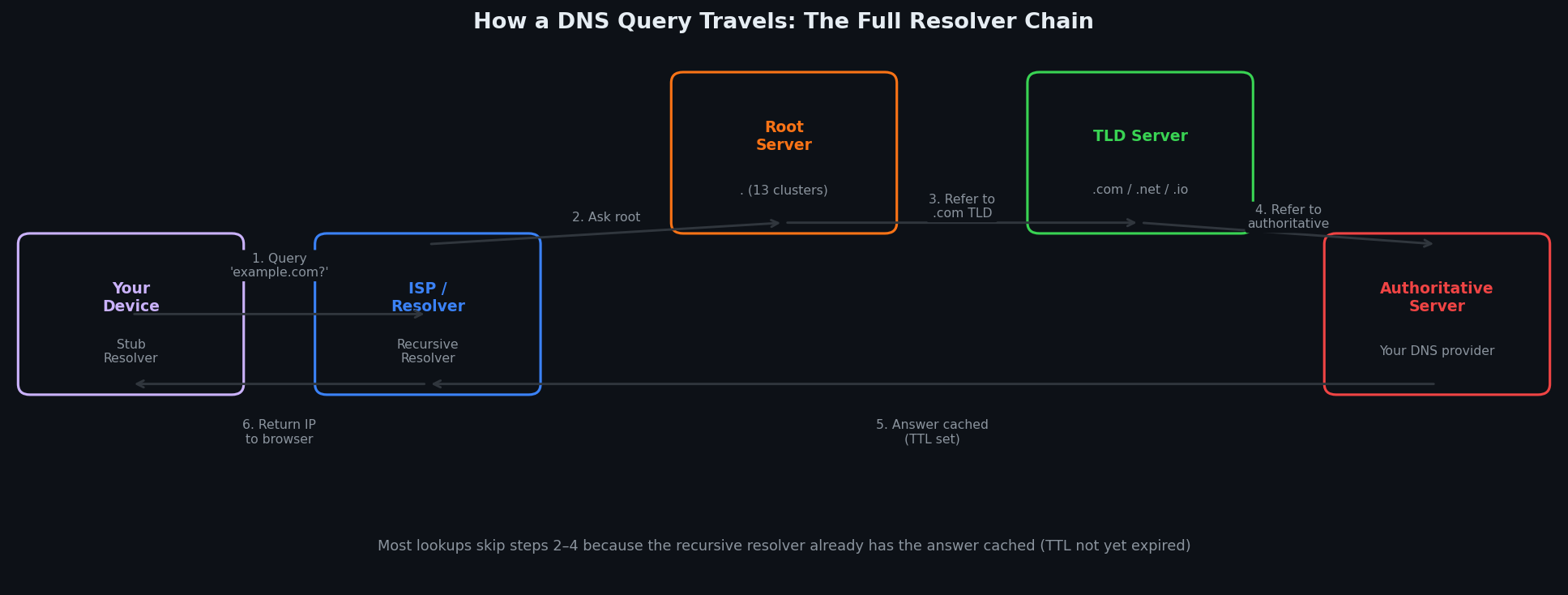
Step 1 — Your browser checks its local cache. Modern browsers cache DNS results independently of the OS. Chrome caches for 60 seconds; Firefox up to the TTL value. chrome://net-internals/#dns shows Chrome's current cache.
Step 2 — Your OS stub resolver checks its cache. Windows, macOS, and Linux all maintain a local DNS cache (flushed with ipconfig /flushdns, dscacheutil -flushcache, or resolvectl flush-caches respectively).
Step 3 — Your recursive resolver is queried. This is typically your ISP's resolver, 1.1.1.1, 8.8.8.8, or a corporate DNS server. It has its own cache, separate from yours, shared across all its users. If 10,000 people use the same ISP resolver, one cached answer serves all of them.
Step 4 — The recursive resolver walks the hierarchy (if its cache is empty). It asks a root nameserver for the TLD, the TLD server for the authoritative nameserver, then the authoritative server for your record. It caches the answer with the TTL you specified.
Propagation is slow because: step 4 only runs when the resolver's cache has expired. Until then, it serves the old cached answer — regardless of what you changed on the authoritative server.
TTL: The Number That Controls Everything
TTL (Time To Live) is a value you set on each DNS record, measured in seconds. It tells resolvers how long to cache your record before re-querying the authoritative server.
Common TTL values:
| TTL | Seconds | Typical use |
|---|---|---|
| 1 minute | 60 | Active migrations, testing |
| 5 minutes | 300 | Pre-migration (set 24h before) |
| 15 minutes | 900 | Frequently changed records |
| 1 hour | 3600 | Standard for most records |
| 4 hours | 14400 | Stable records |
| 24 hours | 86400 | Default for many providers |
| 48 hours | 172800 | Nameserver (NS) records |
The TTL you set determines the maximum propagation window. But there's a catch.
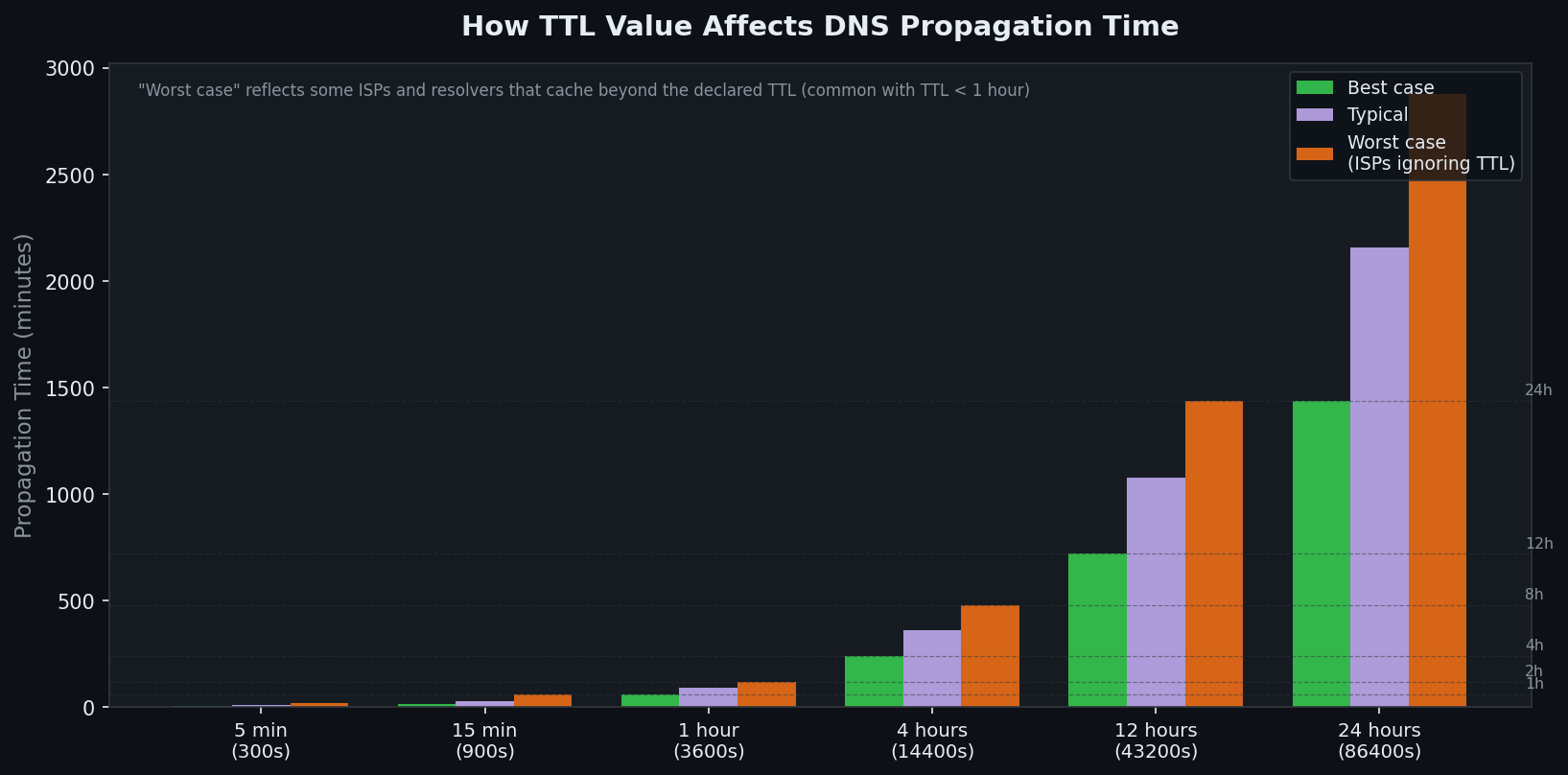
The dirty secret about TTL: many ISPs ignore low TTL values. A resolver serving millions of users can't afford to re-query every 60 seconds for high-traffic domains. Some enforce a minimum cache time of 5 minutes regardless of what you declare. This means very low TTLs (60–300 seconds) behave more like 5-minute TTLs in practice for a portion of resolvers.
A 24-hour TTL means some users might see your old record for a full 24 hours after you make a change — even if you changed it immediately after a previous TTL expiry.
How Long Does DNS Propagation Actually Take?
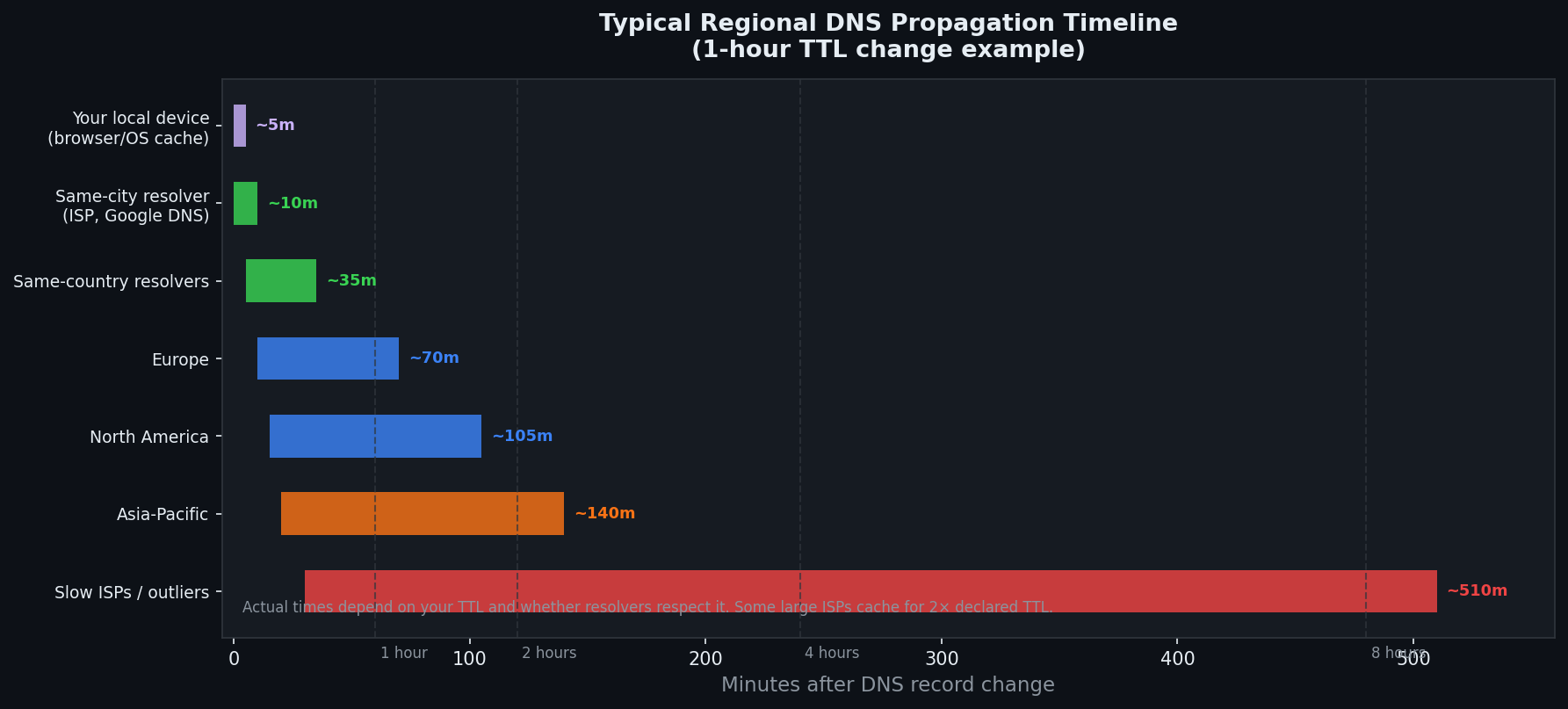
With a standard 1-hour TTL, here's what to expect:
- Your local device: near-instant after flushing cache
- Same-city resolvers: 5–30 minutes (resolver queries authoritative when its cache expires)
- Major public DNS (8.8.8.8, 1.1.1.1): typically 10–60 minutes
- Worldwide propagation: 1–4 hours for most users
- Slow/outlier ISPs: up to 8–12 hours
The "up to 48 hours" figure you see everywhere is technically possible but increasingly rare for A and CNAME records with normal TTLs. It's more accurate for NS (nameserver) record changes, which have longer inherent TTLs and propagate through the root/TLD layer.
Why 48 hours specifically? NS records often have TTLs set by the registry (not you), commonly 24–48 hours. When you change your nameservers at your registrar, you're waiting for the TLD registry to update — and that update propagates through root servers worldwide. This path takes longer than a simple record change within a fixed nameserver.
The Professional Approach: Pre-Lower Your TTL
The biggest mistake people make with DNS migrations: changing records without lowering TTL first.
The right process for planned migrations:
- 48 hours before migration: Lower TTL to 300 seconds (5 minutes) on all records you plan to change
- Wait the full current TTL before the migration window (give resolvers time to pick up the new short TTL)
- Make your record changes — propagation now takes max 5 minutes instead of 24 hours
- After migration is stable: raise TTL back to 3600 or higher
This is the difference between a 5-minute propagation window and a 24-hour one. Every DNS professional does this. Most first-timers learn the hard way.
How to Check DNS Propagation Right Now
The fastest way: use our DNS Propagation Checker — it queries your domain from multiple geographic locations simultaneously and shows whether each region is returning your old or new record.
What you're looking for:
- Green / matching IPs: those regions see your new record
- Old IP still showing: those resolvers haven't expired their cache yet
- Mixed results: normal during propagation — some regions see the new, some the old
Check via command line if you want to verify the authoritative answer directly (bypassing any cache):
# Query a specific DNS server directly (bypasses your local cache)
nslookup example.com 8.8.8.8
nslookup example.com 1.1.1.1

# On Linux/macOS — dig gives more detail
dig example.com @8.8.8.8
dig example.com @1.1.1.1

# Check the TTL of your current record
dig example.com | grep -i ttl

# Query the authoritative nameserver directly (no cache)
dig example.com @ns1.yourprovider.com
If dig @ns1.yourprovider.com shows your new record but dig @8.8.8.8 still shows the old one, your change is correct — you're just waiting for the recursive resolver's cache to expire.
Flush your local DNS cache to stop seeing stale data on your own machine:
# Windows
ipconfig /flushdns

# macOS (Sequoia / Sonoma)
sudo dscacheutil -flushcache; sudo killall -HUP mDNSResponder

# Linux (systemd-resolved)
sudo resolvectl flush-caches

# Chrome browser cache only
# Navigate to: chrome://net-internals/#dns → click "Clear host cache"
Note: flushing your local cache doesn't help if your ISP's resolver still has the old answer cached. Your device will just re-query your ISP's resolver and get the stale answer again.
Common DNS Propagation Scenarios
Scenario 1: Website Migration to a New Server
You're moving from old host → new host. Old A record: 203.0.113.10. New: 198.51.100.20.
What happens during propagation: users with cached old record land on old server. Users whose resolvers have refreshed see new server. Both servers need to be running and serving the same content until propagation completes. If you shut down the old server too early, users with stale cache get errors.
Mitigation: keep old server alive for at least one full TTL after the change. If original TTL was 24 hours, keep old server up 24 hours post-change.
Scenario 2: Email Provider Migration (MX Record)
MX record changes affect where inbound email is delivered. Emails sent during propagation may land on the old or new mail server depending on which MX record the sending server resolved.
Risk: emails delivered to the old server after you've stopped monitoring it. Fix: configure old mail server to forward to new one for a week after migration, or keep old mailboxes accessible during TTL window.
Scenario 3: CDN or Load Balancer Cutover (CNAME change)
CNAME records pointing to a CDN or load balancer typically propagate faster than A records — the CNAME itself caches, but the underlying IP the CDN returns can change rapidly without affecting propagation of your record.
Watch out for: CNAME flattening. Some DNS providers "flatten" CNAME records at the zone apex (replacing the CNAME with the A record it resolves to). This can cause unexpected behavior during migrations if the provider caches the flattened IP.
Scenario 4: Nameserver (NS Record) Change
The slowest type of propagation. Nameserver records are stored at the TLD registry level (.com, .net, etc.) with TTLs set by the registry, typically 24–48 hours. You don't control this TTL.
When you change nameservers at your registrar:
- Your registrar notifies the TLD registry
- Registry updates the delegation
- Registry's update propagates across root name servers worldwide
Expect 12–48 hours for full propagation. There's no TTL pre-lowering trick that helps here.
Troubleshooting Checklist
1. Confirm the new record is correct on the <strong>authoritative server</strong>: <code>dig example.com @ns1.yourprovider.com</code><br> 2. Check what multiple public resolvers see: <a href="/dns-propagation.php">DNS Propagation Tool →</a><br> 3. Flush your local cache (commands above) — you may just be seeing your own stale cache<br> 4. Check your TTL: <code>dig example.com | grep TTL</code> — if it's 86400, you're waiting up to 24h<br> 5. If authoritative shows correct but resolvers don't: wait for TTL expiry — there's nothing else to do<br> 6. If authoritative shows wrong record: you made the change at the wrong provider, or it hasn't saved
DNS Propagation vs DNS Replication: The Difference
These are often confused. They're related but distinct:
DNS propagation = waiting for recursive resolver caches to expire and re-query. This is the delay you experience as a user. You cannot force it. You can only reduce it by pre-lowering TTL.
DNS replication = syncing between multiple authoritative nameservers for the same zone (e.g., ns1.provider.com and ns2.provider.com). Most DNS providers replicate within seconds. If you make a change and it's not showing on your provider's own nameservers within 5 minutes, that's a provider-side problem — contact support.
Tools
- DNS Propagation Checker → — check your record from multiple regions
- DNS Lookup → — query any record type (A, AAAA, MX, TXT, CNAME, NS)
- What is my DNS server → — find which resolver your device is using
- DNS over HTTPS explained → — how modern encrypted DNS works
- Flush DNS cache guide → — platform-specific cache clearing commands