The nslookup command is a network administration tool used to query Domain Name System (DNS) servers and retrieve IP address information for domain names. Whether you're troubleshooting network connectivity issues, verifying DNS configurations, or simply curious about how domain names resolve to IP addresses, nslookup provides immediate answers. This essential command-line utility works across Windows, macOS, and Linux systems, making it an indispensable tool for anyone working with networks.
What is the nslookup Command?
The nslookup command (short for "name server lookup") is a diagnostic tool that queries DNS servers to obtain domain name or IP address mapping information. When you type a website address into your browser, DNS servers translate that human-readable domain name into an IP address that computers use to communicate. The nslookup command lets you see this translation process in action.
At its core, nslookup performs two primary functions: it can resolve domain names to IPv4 (and IPv6) addresses, and it can perform reverse lookups to find domain names associated with IP addresses. This makes it invaluable for network troubleshooting, security auditing, and understanding how DNS infrastructure operates.
How DNS Resolution Works
Before diving into the nslookup command syntax, it's helpful to understand the DNS resolution process. When you query a domain name, your computer contacts a DNS resolver (usually provided by your internet service provider or a public DNS service like Google's 8.8.8.8). This resolver then queries authoritative DNS servers in a hierarchical process until it finds the IP address associated with the domain name.
The DNS system operates on a distributed database model. Root servers point to top-level domain (TLD) servers (.com, .org, .net), which in turn point to authoritative name servers for specific domains. The nslookup command allows you to query any point in this chain, giving you visibility into how DNS records are configured across the network.
Basic nslookup Command Syntax
The simplest form of the nslookup command is:
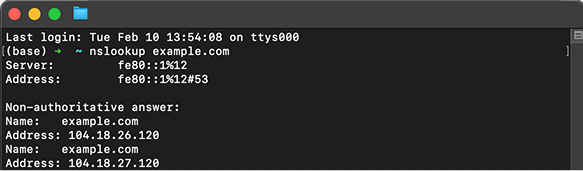
nslookup example.comThis command queries your default DNS server to find the IPv4 address for example.com. The output typically shows two sections: information about the DNS server that answered your query, and the actual answer containing the IP address.
You can also specify which DNS server to query:
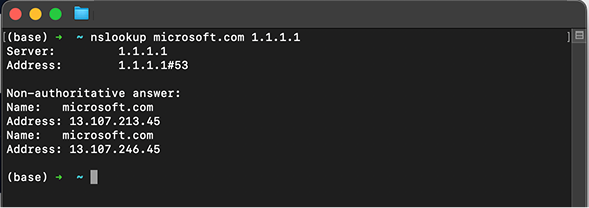
nslookup example.com 8.8.8.8This directs your query to Google's public DNS server (8.8.8.8) instead of your default DNS resolver. This is particularly useful when troubleshooting DNS propagation issues or comparing responses from different DNS servers.
Interactive Mode vs. Non-Interactive Mode
The nslookup command operates in two modes. Non-interactive mode is what we've discussed so far—you execute a single query and get immediate results. Simply type the command followed by the domain name or IP address you want to look up.
Interactive mode provides a more powerful interface for performing multiple queries. To enter interactive mode, simply type nslookup without any arguments. Your command prompt will change to a > symbol, indicating you're now in the nslookup environment. From here, you can:
- Execute multiple queries without re-entering the command
- Change DNS servers using
server <IP address> - Set query types using
set type=<record type> - Configure debugging options with
set debug
To exit interactive mode, type exit or press Ctrl+C.
Common nslookup Command Examples
Here are practical examples of the nslookup command for everyday network tasks:
1. How to perform a basic IPv4 lookup
nslookup google.comUse this to resolve a domain name to its IPv4 address. It’s the fastest way to confirm that DNS is working for a site.
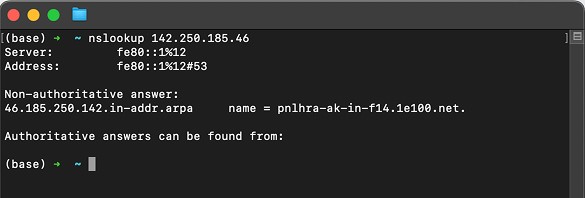
2. How to perform a reverse DNS lookup
nslookup 142.250.185.46Reverse lookups map an IP address back to a domain name, which helps verify ownership or identify servers.
3. How to query a specific DNS server
nslookup microsoft.com 1.1.1.1This checks a specific resolver (like Cloudflare’s 1.1.1.1) to compare results and diagnose DNS propagation issues.
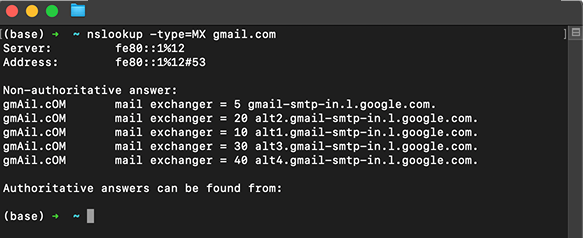
4. How to check MX records for a domain
nslookup -type=MX gmail.comMX records tell you which mail servers handle email for a domain, which is useful for email troubleshooting.
5. How to check the NS records of a domain
nslookup -type=NS example.comBy checking the NS records, you can see which authoritative nameservers control DNS for a domain.
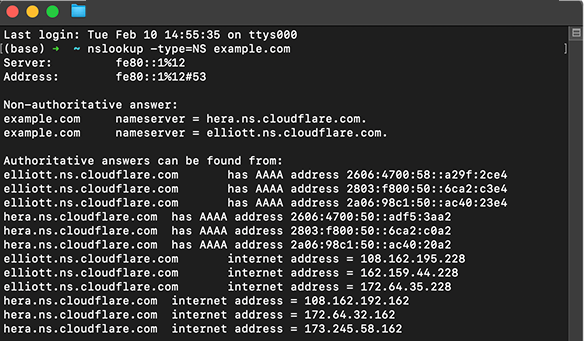
These examples demonstrate how versatile the nslookup command is for different network diagnostics scenarios.
Understanding nslookup Output
When you run a basic nslookup command, the output contains several important pieces of information. The first section identifies the DNS server that answered your query, showing both its name and IP address. This helps you verify which DNS resolver is being used.
The second section contains the actual answer to your query. For a standard IPv4 lookup, you'll see "Non-authoritative answer" followed by the domain name and its associated IP address. "Non-authoritative" means the answer came from a cached record rather than directly from the domain's authoritative nameserver.
If you see "Authoritative answer," it means the response came directly from the nameserver responsible for that domain. You might also encounter error messages like "server can't find" (indicating the domain doesn't exist) or timeout errors (suggesting network connectivity issues or firewall restrictions).
Troubleshooting with nslookup
The nslookup command is particularly valuable for diagnosing DNS-related problems. If a website isn't loading, running nslookup can quickly determine whether the issue is DNS-related or something else entirely. If nslookup returns an IP address successfully, the DNS system is working, and the problem likely lies elsewhere in the network stack.
Common issues you can identify include DNS server failures (no response from the query), incorrect DNS records (wrong IP addresses returned), and DNS propagation delays (different DNS servers returning different results). By querying multiple DNS servers, you can verify whether DNS changes have propagated across the network.
The command also helps identify DNS hijacking or poisoning attempts. If nslookup returns an unexpected IP address for a well-known domain, it could indicate a security issue with your DNS resolver or local network configuration.
Advanced nslookup Techniques
Power users can leverage advanced nslookup features for deeper network analysis. The set all command in interactive mode displays all current settings and options. Setting debug mode provides detailed information about the query process, showing each step of the DNS resolution.
You can query specific DNS record types beyond standard A records (IPv4 addresses). Use -type=AAAA for IPv6 addresses, -type=CNAME for canonical name records, -type=TXT for text records (often used for domain verification), and -type=SOA for start of authority records containing zone information.
Timeout values can be adjusted using set timeout=<seconds> in interactive mode, which is helpful when dealing with slow or congested networks. The retry option (set retry=<number>) determines how many times nslookup will attempt a query before giving up.
nslookup Alternatives and Complementary Tools
While the nslookup command remains widely used, network professionals often employ alternative tools for specific scenarios. The dig command (Domain Information Groper) is available on Unix-like systems and provides more detailed output with better scripting capabilities. Many administrators prefer dig for its comprehensive responses and easier-to-parse output format.
The host command offers a simpler, more streamlined alternative that's excellent for quick lookups. On Windows systems, Resolve-DnsName is a PowerShell cmdlet that provides similar functionality with more modern syntax and integration with Windows networking features.
Each tool has its strengths, but nslookup remains valuable due to its universal availability across operating systems and its straightforward interface that balances power with accessibility.
Security Considerations
When using the nslookup command, be aware of security implications. DNS queries can reveal information about your network infrastructure and browsing patterns. If you're working on a secure network, ensure you're using encrypted DNS protocols like DNS over HTTPS (DoH) or DNS over TLS (DoT) where appropriate.
Be cautious when interpreting nslookup results from untrusted networks. Public Wi-Fi hotspots or compromised networks might have malicious DNS servers that return fraudulent IP addresses for legitimate domains. Always verify critical information through multiple sources and DNS servers.
Some firewalls block outbound DNS queries to external servers, which can interfere with nslookup functionality when trying to query specific DNS servers. Understanding your network's security policies helps you troubleshoot these situations effectively.
Practical Applications in Network Management
Network administrators rely on the nslookup command for routine maintenance tasks. During domain migrations or DNS record updates, nslookup helps verify that changes have propagated correctly. By querying different DNS servers around the world, you can confirm that your new IP address or DNS records are visible globally.
The command is essential for troubleshooting email delivery issues. By checking MX (mail exchanger) records, you can verify that email routing is configured correctly. This is particularly important when setting up new domains or troubleshooting why emails aren't being received.
Web developers use nslookup to verify that newly configured domains point to the correct servers before launching websites. This prevents situations where a domain goes live but points to the wrong IP address, potentially directing users to incorrect content or causing service outages.
Cross-Platform Usage Tips
The nslookup command works similarly across Windows, macOS, and Linux, but there are subtle differences. On Windows, open Command Prompt or PowerShell and type your nslookup commands directly. The output format is slightly different from Unix-like systems, but the core functionality remains identical.
On macOS and Linux, access nslookup through the Terminal application. These systems often have dig pre-installed as well, giving you additional options. Some minimal Linux distributions might not include nslookup by default, requiring you to install the bind-utils (Red Hat-based) or dnsutils (Debian-based) package.
Regardless of platform, the command syntax and behavior are standardized, making it easy to transfer knowledge between different operating systems. This consistency is one reason why nslookup has remained a staple of network administration for decades.
FAQs
What is the nslookup command used for? The nslookup command queries DNS servers to translate domain names into IP addresses or perform reverse lookups. It's primarily used for troubleshooting DNS issues, verifying DNS configurations, and understanding how domain names resolve across networks.
How do I use nslookup to find an IP address? Simply type nslookup followed by the domain name (e.g., nslookup example.com). The command will display the IPv4 address associated with that domain. You can optionally specify a particular DNS server by adding its IP address after the domain name.
What's the difference between nslookup and ping? Nslookup specifically queries DNS servers to resolve names to IP addresses without testing connectivity. Ping sends packets to test whether a host is reachable and measures network latency. Use nslookup for DNS troubleshooting and ping for connectivity testing.
Why does nslookup show 'Non-authoritative answer'? A non-authoritative answer means the DNS information came from a cached record rather than directly from the domain's authoritative nameserver. This is normal and doesn't indicate a problem—it simply means the DNS server stored the result from a previous query.
Can nslookup perform reverse DNS lookups? Yes, nslookup can perform reverse lookups by entering an IP address instead of a domain name. This queries DNS servers to find what domain name is associated with that specific IP address, which is useful for identifying servers and verifying network configurations.