Dead zones. Channel congestion. Mystery devices eating your bandwidth. A WiFi scanner diagnoses all of it in seconds — and most of the best ones cost nothing.
WiFi scanner apps show you exactly what's happening on your wireless network: which channels your neighbors are crowding, where signal drops off, what every device on your network is, and whether someone you didn't invite is connected. In 2026, the options range from zero-setup mobile apps to enterprise-grade site survey suites. Here are the 7 best, ranked by use case.
What Does a WiFi Scanner Do?
Before diving into specific tools, it helps to understand what a WiFi scanner actually measures. At its core, a WiFi scanner detects nearby wireless access points and collects information about each one, including:
- SSID — The network name
- BSSID — The MAC address of the access point
- Signal Strength (RSSI) — Measured in dBm, indicating how strong the signal is at your location
- Channel — Which frequency channel the network operates on
- Security Protocol — Whether the network uses WPA2, WPA3, or is open
- Band — Whether the access point is broadcasting on 2.4 GHz, 5 GHz, or 6 GHz
Armed with this data, you can identify channel congestion, locate weak signal areas, and make informed decisions about access point placement and configuration.
The 7 Best WiFi Scanner Tools in 2026
1. NetSpot
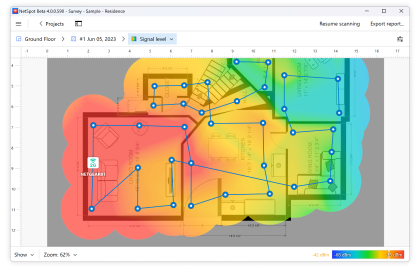
NetSpot has established itself as one of the most approachable yet capable WiFi analysis tools available. It runs on both macOS and Windows and offers two primary modes: Discovery mode scans for all nearby networks and displays their signal strength, channel, and security details, while Survey mode lets you upload a floor plan and walk through a space to create a detailed WiFi heatmap.
The heatmap feature is what sets NetSpot apart from simpler scanners. By visualizing signal coverage across an actual floor plan, you can immediately spot dead zones and areas of channel overlap. This makes it invaluable for anyone tasked with optimizing coverage in an office, warehouse, or large home. NetSpot offers a free version with basic features and paid tiers that unlock advanced survey capabilities.
2. Wireshark
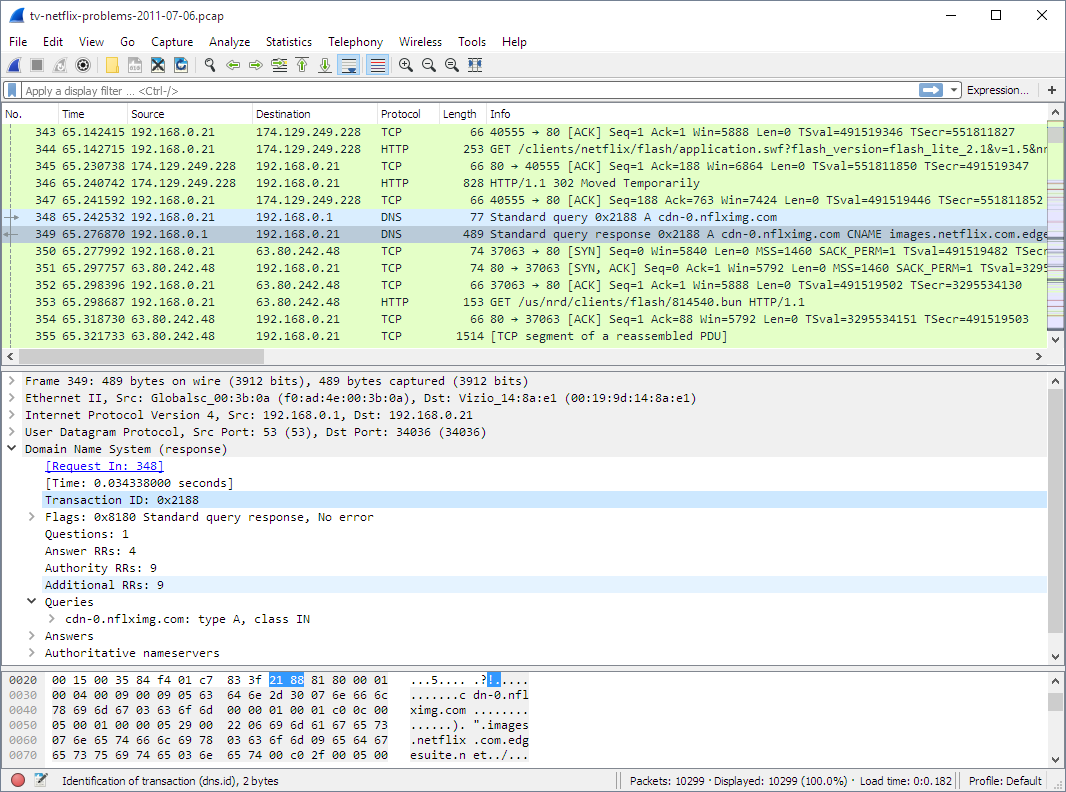
Wireshark is the undisputed heavyweight of network analysis, and its wireless capabilities are no exception. While it is primarily known as a packet-level protocol analyzer, Wireshark can capture and dissect WiFi frames when used with compatible wireless adapters in monitor mode.
This level of depth makes Wireshark the tool of choice when you need to investigate authentication failures, packet retransmissions, or rogue access points at a granular level. However, it comes with a steep learning curve. Wireshark is open-source and completely free, but it is best suited for users with solid networking knowledge who need to go beyond surface-level signal scanning into deep protocol analysis.
3. Kismet
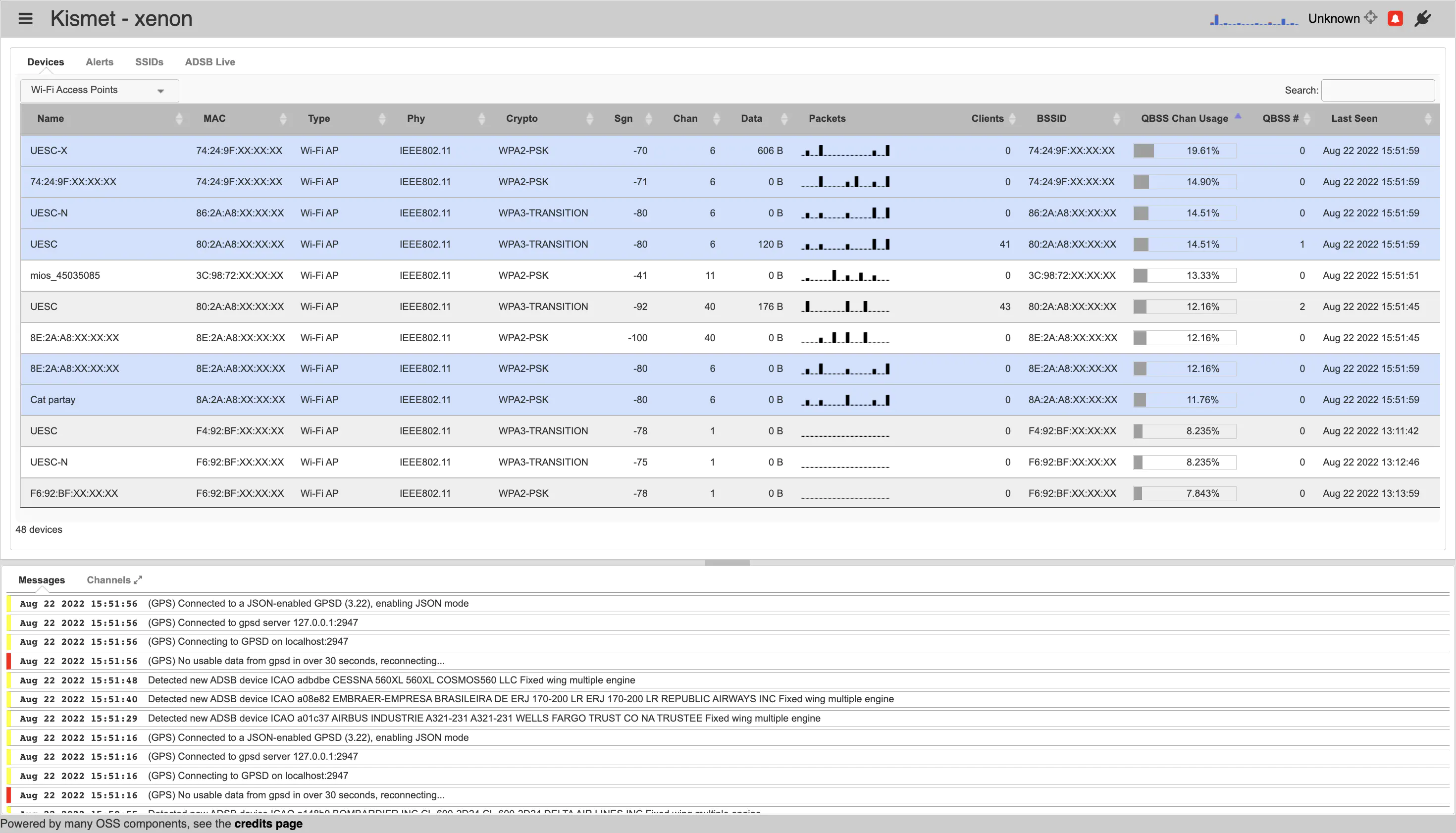
Kismet is an open-source wireless network detector, packet sniffer, and intrusion detection system. It passively monitors wireless traffic without sending any packets of its own, making it particularly useful for security audits and detecting hidden networks that do not broadcast their SSIDs.
Unlike most WiFi scanners that only show you networks advertising themselves, Kismet detects networks by analyzing the raw wireless traffic in the environment. It supports WiFi, Bluetooth, and other wireless protocols, and it runs on Linux, macOS, and Windows. Kismet is a favorite among penetration testers and security professionals who need comprehensive wireless awareness.
4. Acrylic WiFi
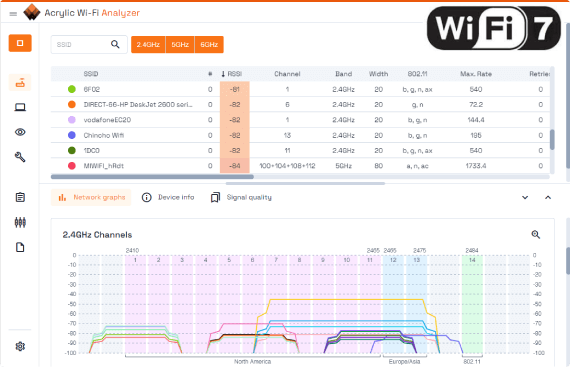
Acrylic WiFi is a Windows-based WiFi analysis suite that comes in two flavors. The free Home edition provides a clean interface for scanning nearby networks, viewing channel distribution, and checking signal strength. The professional edition adds enterprise features including packet capture, WLAN monitoring, and detailed reporting.
What makes Acrylic WiFi stand out is its real-time channel analysis. It clearly shows you which channels in the 2.4 GHz and 5 GHz bands are most crowded, helping you select the optimal channel for your own network. The professional edition also includes a Heatmaps tool for site surveys, making it a solid all-in-one solution for IT professionals on Windows.
5. Fing

Fing takes a different approach to WiFi scanning by focusing on device discovery and network security rather than radio frequency analysis. Available on iOS and Android as a free mobile app, Fing scans your local network and identifies every connected device, showing you the device name, manufacturer, IP address, and MAC address.
This makes Fing incredibly useful for answering a simple but important question: who is on my network? It can detect unauthorized devices, identify bandwidth hogs, and run basic speed and connectivity tests. For home users who want straightforward network visibility without technical complexity, Fing is an excellent choice.
6. PRTG Network Monitor

For enterprise environments that need continuous WiFi monitoring rather than one-time scans, PRTG Network Monitor offers a sensor-based approach. You can configure sensors to continuously track the signal strength, uptime, and client count of your wireless access points, with automated alerts when thresholds are breached.
PRTG monitors far more than just WiFi. It is a full network monitoring platform covering switches, servers, bandwidth, and applications. But its wireless-specific sensors are well-designed and integrate seamlessly into the broader monitoring dashboard. PRTG is free for up to 100 sensors, which is often enough for small to medium-sized deployments.
7. Homedale
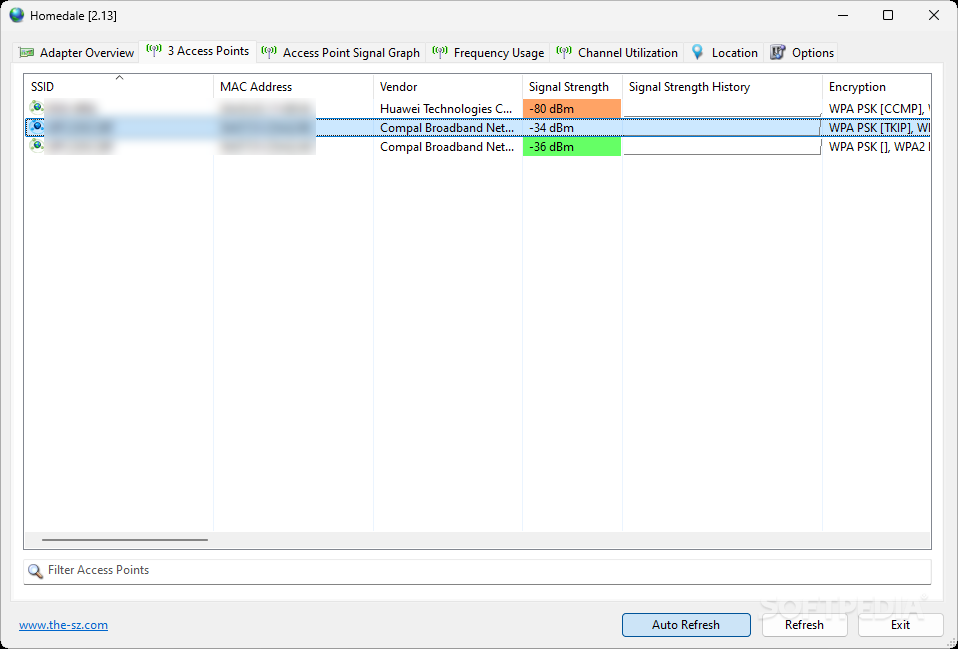
Homedale is a lightweight, portable WiFi scanner for Windows that requires no installation. You simply download the executable and run it. Despite its simplicity, it provides a surprisingly detailed view of nearby wireless networks, including signal strength graphs over time, channel utilization charts, and access point details.
The real appeal of Homedale is its portability and speed. Because it needs no setup, you can carry it on a USB drive and run it instantly on any Windows machine. For quick troubleshooting visits or ad-hoc signal checks, it is hard to beat.
How to Choose the Right WiFi Scanner
The best tool depends on what you are trying to accomplish:
Tips for Optimizing Your WiFi
Once you have scanned your network, here are a few common optimizations:
- Switch to a less crowded channel. If your scanner shows your access point on the same channel as five neighbors, moving to a less occupied channel can dramatically improve performance.
- Use the 5 GHz or 6 GHz band. These bands offer more channels and less congestion than 2.4 GHz, though with shorter range.
- Reposition your access point. Centralizing the access point in your space and elevating it reduces dead zones.
- Check for interference. Microwaves, baby monitors, and Bluetooth devices can all interfere with 2.4 GHz WiFi.
Which WiFi Scanner Should You Download Today?
Start with Fing on your phone if you just want to see who's on your network — it takes 30 seconds. Use NetSpot (free version) on your laptop if you want to find channel congestion or dead zones. Step up to Wireshark or Kismet if you need packet-level detail for security or diagnostics work.
Running a scan once a month takes five minutes and keeps you ahead of interference, unauthorized devices, and slow channels before they become real problems.
Find out more about your network:
- Run a Ping Test to check latency →
- DNS Lookup — see how your domain resolves →
- Check your IP address and location →
- Latency Test →
Updated April 2026 — tools and recommendations verified against current versions.