WiFi dropping randomly is one of the hardest network problems to fix because the cause could be anywhere in the chain: your device's network adapter, the router, your ISP line, interference from other devices, an IP address conflict, or a power-saving setting quietly killing your connection every few minutes.
Use the pattern and the checks below to narrow the cause before changing settings.
Updated October 8, 2026: expanded the connected-but-no-internet checks and corrected the distinction between DHCP failure and duplicate IP addresses.
Step 1: Figure Out the Pattern First
Before changing anything, spend two minutes identifying the pattern. It changes everything about where to look.
Answer these questions:
- Does it happen on all devices or just one? (Just one = device problem. All devices = router or ISP.)
- Does it drop at a specific time? (Same time daily = ISP issue or scheduled router restart. Random = interference or hardware.)
- Does it drop after being idle, or mid-use? (After idle = power-saving settings. Mid-use = signal or hardware.)
- Does the WiFi icon disappear, or does it stay connected but lose internet? (Icon disappears suggests an association problem. Connected but no internet can involve DHCP, DNS, a captive portal, VPN policy, or the upstream connection.)
Keep this distinction in mind: "WiFi disconnecting" and "WiFi connected but no internet" are different problems. This guide covers both.
Fix 1: Check WiFi Power Saving When Drops Follow Idle Time
If the connection drops after idle time or sleep, check the adapter's power behavior before investigating unrelated settings.
Both Windows and Android aggressively put the network adapter to sleep to save battery. When a packet arrives, there's a delay waking it back up -- and sometimes the router gives up and drops the connection entirely.
Windows:
- Open Device Manager (Win + X, Device Manager)
- Expand "Network adapters," right-click your WiFi adapter, click Properties
- Go to the "Power Management" tab
- Uncheck "Allow the computer to turn off this device to save power"
- Click OK
Also check this:
- Open Control Panel > Power Options > Change plan settings > Change advanced power settings
- Expand "Wireless Adapter Settings" > "Power Saving Mode"
- Set to "Maximum Performance"
Android:
Settings vary by manufacturer, but look for: Settings > Battery > Battery Optimization > find your WiFi or search for "Keep WiFi on during sleep" under Developer Options or WiFi Advanced settings. Set to "Always."
Mac:
On a Mac, note whether the problem happens only after sleep. Wake the computer fully, reconnect Wi-Fi, and check for macOS updates. Power Nap and Wake for network access are not general fixes for an active Wi-Fi connection dropping.
Fix 2: Check for IP Address Conflicts
A duplicate IP means two devices are trying to use the same address on the same LAN. It can happen when a manually configured address overlaps the DHCP pool, but intermittent connectivity alone does not establish a conflict.
On Windows, inspect the active adapter:
ipconfig /allIf its IPv4 address starts with 169.254, investigate DHCP first using our self-assigned IP guide. This address is not proof of an IP conflict.
For a possible conflict, compare the devices' own configured addresses and the router's reservations or lease records. Watch for conflict warnings or a repeatedly changing MAC mapping for the same IP in the ARP table. One ARP snapshot cannot reliably display both competing devices or prove a conflict; proxy ARP and other network behavior can also affect mappings.
Move an overlapping manual address to a verified unused address outside the dynamic pool, or use the router's DHCP reservation feature according to its documentation. Do not guess an address from another network.
If the device uses DHCP, renewing its lease may restore a valid configuration. This temporarily interrupts its connection; run locally rather than through a remote session:
ipconfig /release
ipconfig /renew
Flushing DNS does not repair an address conflict. If you still cannot identify the conflicting device, follow our unknown-device workflow.
Fix 3: Update or Roll Back Your WiFi Driver (Windows)
A bad driver update is a common cause of sudden WiFi instability that wasn't a problem before. If your WiFi started dropping after a Windows Update, this is almost certainly why.
To roll back:
- Device Manager > Network adapters > right-click WiFi adapter > Properties
- Driver tab > "Roll Back Driver"
- If grayed out, the update can't be rolled back -- go to the manufacturer's site and download the previous version manually
To update manually: Go to your laptop or WiFi adapter manufacturer's site (Intel, Realtek, Qualcomm, Broadcom) and download the latest driver directly. Windows Update often installs generic drivers rather than the manufacturer-optimized version.
For Intel WiFi adapters specifically, use the Intel Driver and Support Assistant tool -- it handles updates more reliably than Device Manager.
Fix 4: Change Your Router's WiFi Channel
Interference from neighboring WiFi networks on the same channel is a genuine and common cause of drops, especially in apartments and offices.
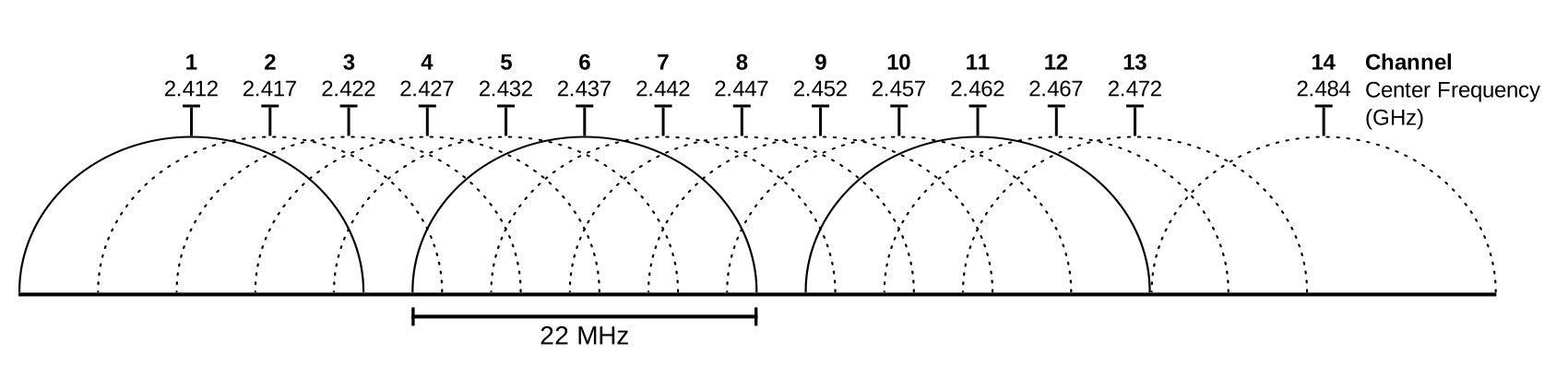
Every WiFi network broadcasts on a channel within the 2.4 GHz or 5 GHz band. If your neighbors' routers are on the same channel, they compete for the same airwaves and cause packet loss and disconnections.
Check which channels are congested on your iPhone:
If you have IP Scanner on your iPhone, the built-in WiFi Analyzer shows every nearby network with its channel and signal strength. You can immediately see which channels are overcrowded.
On Windows:
Open Command Prompt and run:
netsh wlan show allLook at the "Channel" column for all visible networks. Find the channel with the fewest competing networks.
How to change channels:
Log into your router admin page (192.168.1.1 or check your router's label). Navigate to the Wireless or WiFi settings. Change the channel manually.
For 2.4 GHz: use channels 1, 6, or 11 only. These are the only non-overlapping channels. Avoid everything in between.
For 5 GHz: interference is less of a problem, but picking a less-used channel still helps. Try channels 36, 40, 44, or 48 (lower UNII-1 band).
Fix 5: Check the 2.4 GHz vs 5 GHz Band
Most modern routers broadcast two networks: one on 2.4 GHz and one on 5 GHz. Your device may be connecting to the wrong one.
- 2.4 GHz: longer range, slower speed, more interference (shares spectrum with microwaves, Bluetooth, baby monitors)
- 5 GHz: shorter range, faster speed, much less interference
If you're dropping connections while moving around the house, your device might be stuck on 5 GHz and losing signal strength before switching to 2.4 GHz. Many routers handle this badly.
Try manually connecting to the 2.4 GHz network (it often has a "\_2G" suffix) if you're at a distance from the router. Or connect to 5 GHz if you're nearby and experiencing interference drops.
Some routers let you enable "band steering" which automatically moves devices to the best band. But band steering can also cause drops if it's switching too aggressively. Try disabling it if you have it enabled.
Fix 6: Check Your ISP Line Quality
If all devices drop at the same time, the problem is upstream from your router: either the router itself or the ISP line.
Test for line quality issues:
Run a continuous ping to your router's gateway from a computer:
ping 192.168.1.1 -tWatch for dropped packets (Request timeout) or high latency spikes. If pings to your own router are failing, the router or its WiFi radio is the issue, not the ISP line.
Then ping an external server:
ping 8.8.8.8 -tIf router pings succeed but 8.8.8.8 pings drop, the problem is between your router and your ISP. Call your ISP and ask them to run a line test. Ask specifically about packet loss and signal levels on your modem -- for cable connections, ask about SNR (signal-to-noise ratio) and power levels. If they're outside spec, the physical line needs attention.
You can also check your IP address status and run diagnostics at iptoolspro.com to verify what your connection looks like from the outside.
Fix 7: Router Firmware and Overheating
Routers are small computers running embedded software. Outdated firmware has bugs. Overheated routers throttle their radio output or restart entirely.
Update router firmware:
Log into your router admin page. Look for "Firmware Update," "Software Update," or "Router Update" -- it's usually under Administration or Advanced settings. Most routers can check for updates automatically. If yours hasn't been updated in over a year, update it.
Check for overheating:
Touch the router. If it's hot, not just warm, it's running too hot. Make sure it's not enclosed in a cabinet or cupboard, not in direct sunlight, and not sitting on carpet. Routers need airflow around all sides. If it has external antennas, make sure they're screwed in properly -- a loose antenna causes the radio to absorb excess energy as heat.
A router that restarts every few hours, especially in warm weather, is typically overheating.
Fix 8: Check for DNS Failures (Connected But No Internet)
A Wi-Fi association only confirms the wireless link. Work out whether the problem is local addressing, upstream access, or name resolution before changing DNS.
Check one device versus the whole network
Try another device on the same SSID. If only one fails, inspect that device's IP configuration, VPN, proxy, and security software. If all fail, check the router's internet status, modem or ONT indicators, and your ISP's outage information.
At a hotel or public hotspot, open the system's sign-in prompt and complete the captive portal. A network can allow Wi-Fi association while restricting internet access until sign-in is complete.
Confirm an address and gateway
On Windows, run ipconfig /all; on Mac, open Network → active service → Details → TCP/IP. Read the active adapter rather than an unused VPN or virtual adapter.
An unexpected 169.254 address on a DHCP network points toward an address-assignment problem. Follow the DHCP troubleshooting guide. An empty or incorrect gateway can also prevent ordinary internet access.
Compare local reachability, internet reachability, and DNS
Run these locally. Replace the sample gateway with the gateway from your settings:
ping 192.168.1.1
ping 1.1.1.1
nslookup example.com
Stop continuous ping commands with Ctrl+C. ICMP can be blocked, so use these as clues alongside router status and whether normal sites or services work.
| Observation | What to investigate next |
|---|---|
| Cannot reach the gateway or its admin page | Wrong subnet, local connection, router, or isolation |
| Gateway responds; multiple internet services fail | Router WAN status, ISP, VPN, or upstream firewall |
| Internet IP responds; DNS lookup fails | Resolver configuration, resolver access, or filtering |
| DNS returns expected addresses; one site fails | Site outage, browser, TLS, IPv6 path, proxy, or MTU |
For a DNS-specific comparison, try a different resolver if your network allows direct queries:
nslookup example.com 1.1.1.1If this succeeds while your configured resolver fails, investigate that resolver. A network may intentionally block external DNS, and a browser's encrypted-DNS setting can differ from the operating system's resolver. See the nslookup tutorial and DNS server guide.
Avoid testing by opening an arbitrary website's IP address in a browser: HTTPS certificates and virtual hosting can make that fail even when DNS is working. Change the resolver only after evidence points to DNS, and preserve managed-network or VPN requirements. If stale cached records are the issue, follow the DNS cache guide.
If internet access works but a local device is missing from a scan, use the scanner discovery guide. If only certain services fail, the MTU troubleshooting guide may be relevant.
Fix 9: MAC Address Filtering and Router Security Settings
Some routers have MAC address filtering enabled, which only allows pre-approved devices to connect. If your device's MAC address changes (which happens on iOS 14+ and Android 10+ by default due to MAC randomization), the router may drop your connection after re-associating with a new random MAC.
Check on iPhone:
Settings > WiFi > tap your network > look for "Private WiFi Address." If it's set to "Rotating," your MAC address changes periodically. This is good for privacy on public networks but can cause drops on home routers with MAC filtering.
Either turn off Private WiFi Address for your home network, or log into your router and disable MAC address filtering entirely (it provides minimal security benefit on a home network anyway).
Summary: Which Fix to Try First
| Symptom | Most Likely Cause | Start Here |
|---|---|---|
| Drops after being idle | Power saving | Fix 1 |
| All devices drop together | Router or ISP | Fix 6, then Fix 7 |
| Connected but no internet | DHCP, DNS, captive portal, VPN, or WAN issue | Fix 8, then the linked DHCP guide |
| Only one device drops | Driver or device settings | Fix 3, then Fix 1 |
| Drops in certain spots | Band or channel | Fix 4, then Fix 5 |
| Drops after Windows Update | Driver | Fix 3 |
| Router restarts randomly | Overheating or firmware | Fix 7 |
| Drops after iOS update | MAC randomization | Fix 9 |
Use the symptom table to choose your first check. After each change, repeat the test that failed so you can tell whether it helped.
For checking your IP status, running port scans, or testing DNS from the outside, use the tools at iptoolspro.com.